FILE / Health
How to Set Up a Comfortable and Ergonomic Desk Workspace
If your desk leaves your back, neck, or wrists sore, a few small changes can make long days feel easier. This guide shows how to adjust your chair, monitor, and keyboard, and how to add short movement breaks so your whole workstation fits your body better.
What Makes a Desk Workspace Comfortable
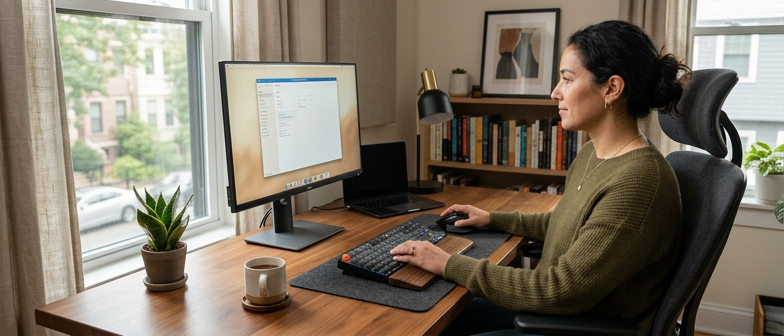
A comfortable desk workspace is one where your body can stay in a neutral, relaxed position while you work, instead of reaching or twisting. Ergonomics guidance from occupational safety agencies describes this as arranging your chair, desk, and screen so your shoulders are loose, your back is supported, and your hands and forearms stay roughly in line. In practice, that means sitting with feet flat, hips and knees near right angles, the keyboard and mouse close enough to keep your elbows by your sides, and the monitor high enough that your eyes look slightly downward without bending your neck sharply.
Comfort also depends on how the whole workstation is set up and how easily you can change it. Safety guidance notes that there is no single perfect posture; a good layout lets you adjust chair height, shift the keyboard and mouse, and move the screen to reduce glare or squinting. A practical arrangement balances support and flexibility so you can sit steadily yet still stand up, stretch, and vary your position through the day.
Setting Up Your Chair and Sitting Posture
A comfortable workstation begins with how your chair supports your body. Adjust the seat so your feet rest flat on the floor or a stable footrest, your knees are roughly level with or slightly lower than your hips, and your thighs are supported without pressure behind the knees. Raise or lower the chair until your legs feel relaxed and your weight is spread across your hips instead of concentrated in one spot. If the chair must be high to match the desk and your feet dangle, use a footrest or sturdy box so your legs and lower back stay supported.
Next, set the backrest and lumbar support to follow the natural curve of your spine. A neutral sitting posture keeps your ears, shoulders, and hips roughly in line, with a gentle inward curve in the lower back rather than a flat or exaggerated shape. Sit back so your back contacts the backrest, then place the lumbar support or a small cushion at the small of your back. Adjust the backrest so you can sit upright or slightly reclined, with relaxed shoulders and arms close to your sides instead of slumping toward the screen.
Align your sitting posture with the rest of your desk ergonomics so muscles can stay relaxed through the day. Position the chair so, when your arms hang by your sides and your elbows bend about ninety degrees, your forearms are level with the keyboard and mouse without needing to shrug or lean forward. Keep wrists straight and hands hovering just above the input devices, not pressed into the desk edge. When you return to your chair or switch tasks, briefly check that your feet are supported, your hips are all the way back, your lower back has contact with the backrest, your shoulders feel loose, and your elbows rest comfortably by your sides. Small, regular adjustments can help manage day-to-day discomfort, but ongoing pain or medical conditions should be discussed with a qualified health professional.
| Chair Element | What to Adjust | Good Sign | Watch Out For |
|---|---|---|---|
| Seat height | Raise or lower seat | Feet supported, hips slightly above knees | Dangling feet, pressure on back of thighs |
| Seat depth | Slide seat forward or back | Thighs supported, small gap behind knees | Edge pressing into calves or knees |
| Backrest & lumbar | Align with lower back curve | Back fully supported, gentle inward curve | Slumped spine, overarched lower back |
| Arm position | Match desk and armrest height | Elbows near sides, forearms level | Shrugged shoulders, reaching forward |
| Overall posture check | Scan from feet to shoulders | Relaxed muscles, easy breathing | Persistent tension, pain, numbness |
Positioning Your Monitor, Keyboard, and Mouse
Start by setting your monitor so the top edge is at or slightly below eye level when you sit upright. Start with the display about an arm’s length away, then adjust distance and text size so you can read without leaning. People using bifocals or other vision aids may need a lower screen. A screen that is too low encourages a bent neck and rounded shoulders, while one that is too high can strain the back of your neck. At home, you can raise a low monitor with a stable stack of books or a box, and a laptop can be placed higher if you use an external keyboard and mouse so your arms stay relaxed.
After the screen is in place, bring the keyboard close enough that your upper arms hang by your sides, your elbows are near a right angle, and your wrists stay in line with your forearms. Place the keyboard on a stable surface close enough to avoid reaching. Leave room to support your arms comfortably without pressure from a sharp desk edge. A steeply tilted keyboard can make your wrists bend upward, while a surface that is too high can make you lift your shoulders. If you cannot lower the desk, adjust the chair and use a footrest or firm box so your feet stay supported and your shoulders, elbows, and wrists line up comfortably.
Keep the mouse at the same height and distance as the keyboard, as close as is practical so your forearm can move sideways rather than forward. A mouse placed far away or on a different level can create awkward angles for your shoulder and wrist, especially during frequent clicking or scrolling. You can lessen strain by using keyboard shortcuts where possible, resting your hand lightly when you pause, and occasionally letting your arms drop to your lap. During the day, notice how your neck, shoulders, and wrists feel, and make small changes to monitor height or input device position until they stay in a neutral, relaxed posture for most of your work.
Building Movement and Breaks into Your Day
Even with a well-adjusted desk, staying in one posture for long periods can lead to stiffness and fatigue. Ergonomic guidance from safety and health organizations highlights varying your posture and adding brief movement throughout the day instead of relying on a single ideal position. As a practical reminder rather than a medical threshold, try changing what your body is doing every 30 to 60 minutes, such as standing up, stretching your shoulders, or walking to refill your water. Short, frequent pauses are often easier to maintain than occasional long breaks and can usually be added without disrupting concentration.
To make these pauses routine, treat them as part of your workstation setup rather than an extra task. You can set a quiet computer timer, use calendar reminders, or pair short breaks with natural transitions like finishing an email or joining a meeting. During each pause, change position or take a short walk if you can. Keep movement comfortable; do not force stretches or push through pain. Over the day, these small movements support circulation, reduce the strain of holding one posture, and complement your overall desk ergonomics.
Q&A
-
What is the quickest way to make my desk more comfortable today?
Adjust your chair so your feet are supported, pull the keyboard and mouse close so your elbows stay near your sides, and adjust the monitor so its top is at or slightly below eye level, with the center below your straight-ahead gaze. -
How should I set my chair if the desk feels too high?
Lift the chair until your forearms are roughly level with the work surface, then use a footrest or a stable box so your feet are firmly supported and your knees stay near hip height. -
What monitor height and distance work for most people?
Place the top of the screen at or just below eye level and about an arm’s length away, then adjust so you can read clearly without leaning forward or squinting. -
Where should the keyboard and mouse go to relax my shoulders?
Keep both on the same surface, close enough that your elbows hang by your sides and your wrists stay straight, avoiding wide reaching or pressing on the front edge of the desk. -
How often should I move when working at a desk?
Try to change posture or move briefly every 30 to 60 minutes, such as standing, stretching your shoulders, or walking a short distance before sitting again.
References
- https://ehrs.upenn.edu/health-safety/ergonomics/home-office-ergonomics
- https://www.safety.pitt.edu/ehs/ergonomics/setting-your-workstation
- https://www.cdc.gov/niosh/office-environment/about/index.html
- https://www.hse.gov.uk/msd/dse/good-posture.htm These adjustments are starting points, not a treatment for persistent symptoms. Seek professional advice for ongoing pain, numbness, tingling, or weakness.